Submit single shift bid request for Combination of Individual Shifts auction (WCAG)
For a Combination of Individual Shifts auction, create a custom schedule by selecting one shift Work period in WFM that has a definite length. for each working day you want in the scheduling period.
In this type of auction, you can select one or more bid options, but once the request is approved, if Continuous Bidding is not enabled, you cannot submit any additional bid requests. Before the request is approved (for example, if it's in a Pending state), you can submit a single request multiple times. (If Continuous Bidding is enabled, you can submit a single request multiple times.)
For example, you can select the following:
-
One shift on Monday from 8:00 AM - 5:00 PM.
-
One shift on Tuesday from 9:00 AM - 6:00 PM.
-
One shift on Thursday from 7:00 AM - 3:00 PM.
-
One shift on Friday from 7:30 AM - 2:30 PM.
-
You do not want to work on Wednesday, Saturday, and Sunday, so you do not select any shifts on these days.
Procedure
-
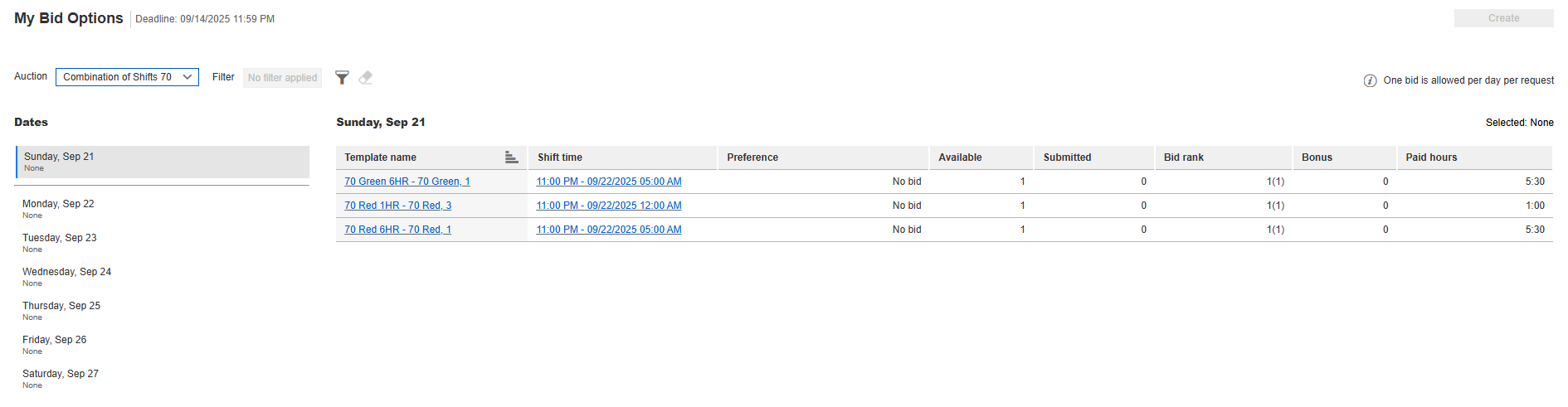
Go to My Home. From My Requests, select My Bid Options.
-
From the Auction drop-down list, select the Combination of Individual Shifts auction you want.
-
Optional. To limit the bid options displayed in the list, select a filter from the Filter drop-down list.
-
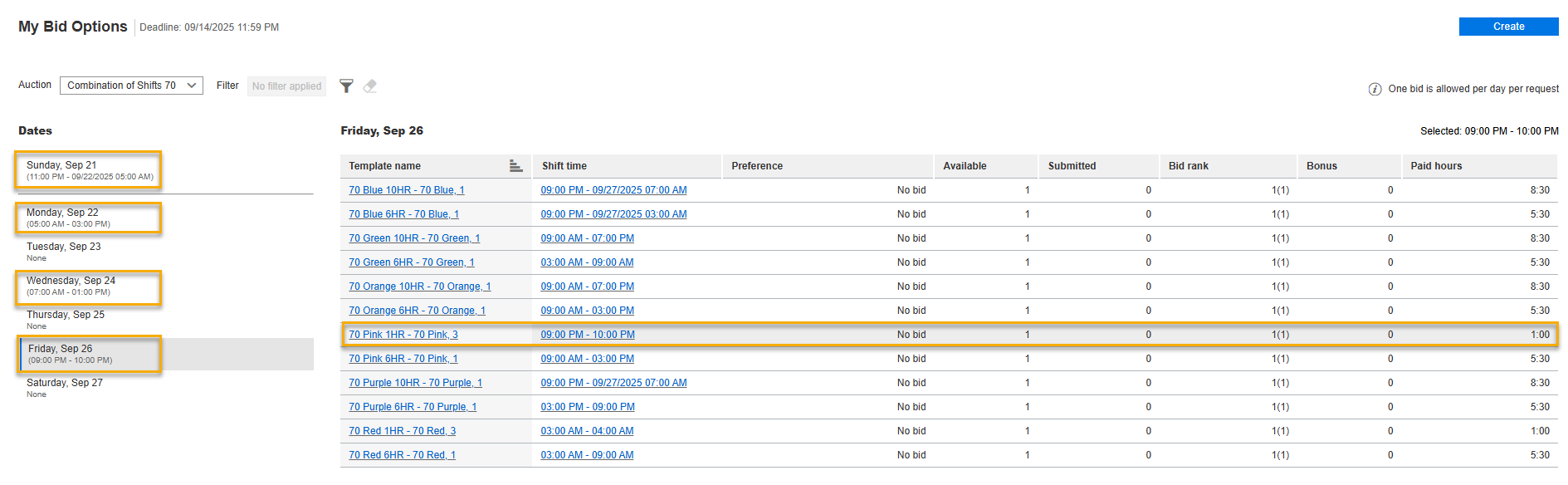
From Dates, select the day for which you want to select a shift.
-
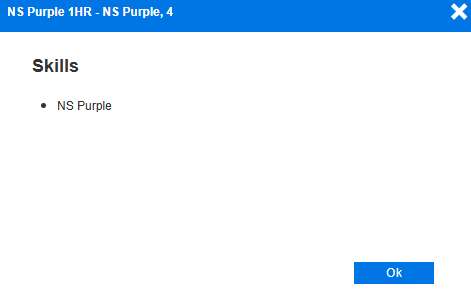
Optional. To view the skills required for a shift, from the Template Name column, select a shift template.
The system displays the skills required for the shift. To return to the My Bid Options screen, select Ok.
-
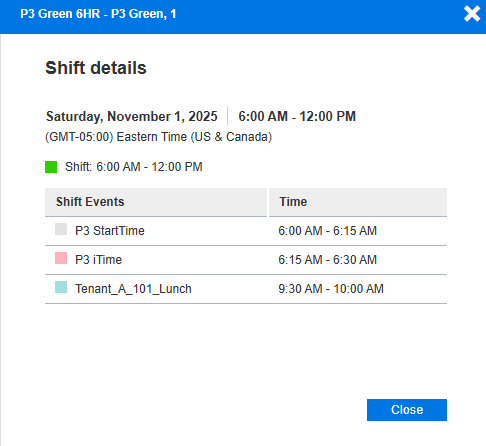
Optional. To view the details of a shift, from the Shift time column, select the shift time range.
The system displays the date and time of the shift (including time zone), shift template name, and the shift event Time period in WFM when employees are scheduled for specific activities, other than the main shift activity. Shift events can either be productive or unproductive, and can be associated with activities such as Phone, Email, Break and Lunch. activities and times.
-
On the right, select the row of the shift you want for that specific day.
For a Combination of Individual Shifts auction, you can only select one shift for each day. You cannot select two shifts that occur on the same day.
For example, you select one shift on Sunday, September 21, one shift on Monday, Sep 22, one shift on Wednesday, Sep 24, and one shift on Friday, Sep 26. You cannot select two shifts on Sunday, September 21.
-
To select other shifts on other days, repeat steps 6–7 for the shifts you want to select.
-
Select Create
-
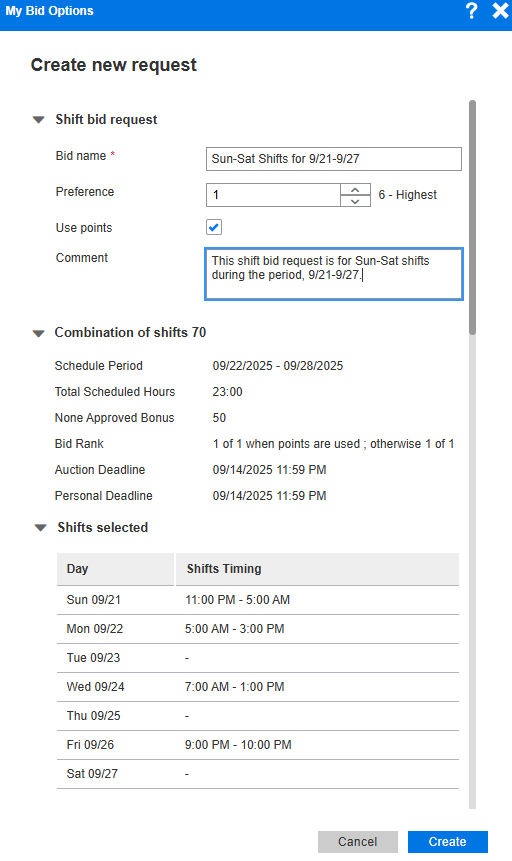
On the Create New Request form, complete the following fields:
-
Bid Name: Name that describes the shift bid request.
-
Preference: Preference or priority of the shift bid request (1 is the highest preference.)
-
Use Points: Optional. When an auction is configured to use bonus points, select this check box to use bonus points for the shift bid request. Using points can affect the rank of shift bid requests.
-
Comment: Optional field to include comments about the shift bid request.
-
-
View the details about the selected auction, and the shifts you selected on your working days. For non-working days, a hyphen (-) appears.
-
Select Create.
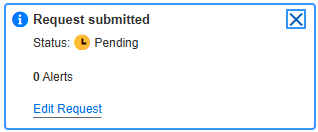
Your request has been submitted, and the status of your request has been updated.
-
To review or edit your request, select Edit Request.
-
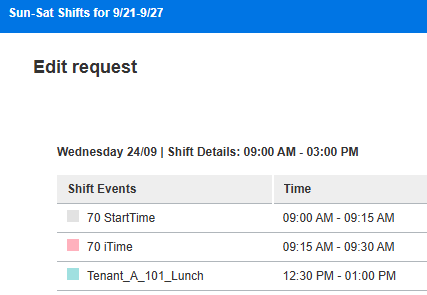
While your request is still in a Pending state, you can edit the fields on the request form. You can also scroll down to view more details about your shifts, including the activities and time ranges of shift events and any alerts.
-
If you changed your shift bid request, select Update. If you did not make any changes, select Cancel.
-
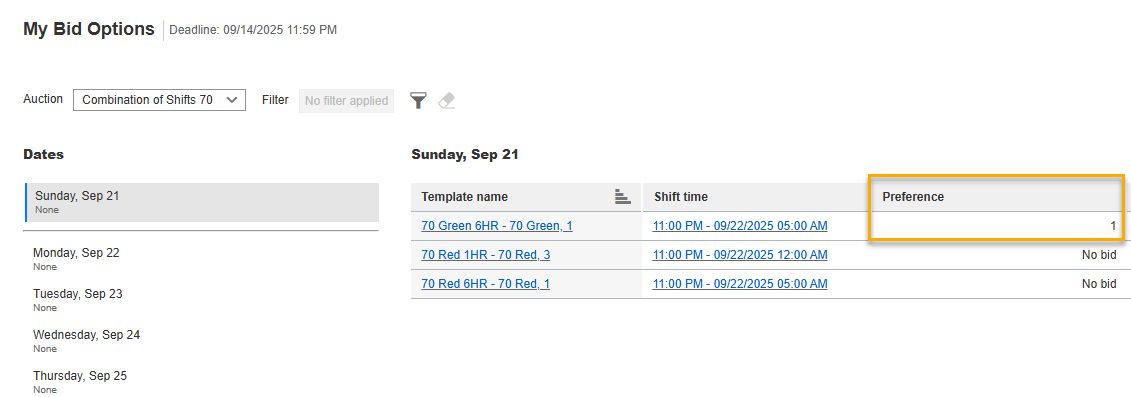
On the My Bid Options page, view the updated preferences saved for the submitted bids.