Make the Tenant URL value known to the AAD provisioning process
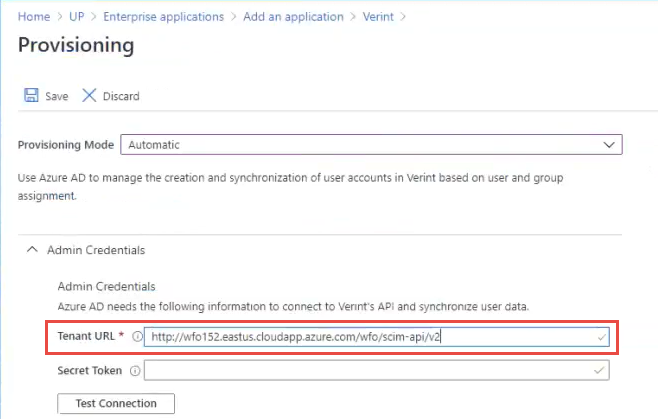
Copy the Tenant URL value from the Provisioning Settings screen of the Feature Settings in the WFO application. Paste the Tenant URL value into the Tenant URL field on the Azure Active Directory One of the main user authentication methods supported in the system, allowing customers to leverage Windows Authentication as the authentication mechanism in the system. (AAD) Provisioning screen.
Procedure
-
Open a new browser tab. Leave the AAD Provisioning screen that you were working with in the previous procedure open in a separate browser tab. You will need to switch to the AAD Provisioning screen tab when performing this procedure.
-
From the new browser tab, log into the WFO portal Home page or main UI access point for all WFO applications..
-
In the new browser tab, go to System Management Module that allows performing suite-wide system management activities from a single, Web-based application, the Enterprise Manager.. Under General Settings, select Feature Settings.
-
Select Provisioning Settings.
-
From the Provisioning Settings screen, copy the Tenant URL by clicking the copy icon
 at the right-hand side of the field.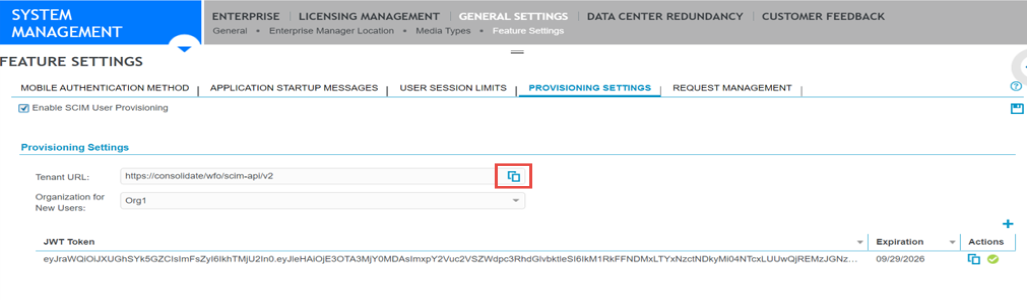
-
Change to the browser tab that contains the AAD Provisioning screen that you were working with in the previous procedure.
-
Place your cursor in the Tenant URL field in the Admin Credentials section of the AAD Provisioning screen. Paste the tenant URL you copied in step 5 into the Tenant URL field of the AAD Provisioning screen.
-
Leave both the browser tab containing the WFO Provisioning Settings screen and the browser tab containing the AAD Provisioning screen open.
What to do next