Add a Shift Swap request (WCAG)
You can send another employee a swap request. You can swap a shift Work period in WFM that has a definite length. or non-work time, do a one-way or two-way swap with an employee, and swap a full shift or partial shift.
One-way and two-way swaps
Note the following:
-
One-way swaps: You take a shift or non-work day from another employee without the other employee taking a shift or non-work day from you.
-
Two-way swaps: You take a shift or non-work day from another employee and the other employee takes a shift or non-work day from you.
Alternate way to swap a shift
Alternatively, you can create a posting for the swap board. A posting can be picked up by anyone that can view the swap board.
Procedure
-
Go to My Home. Under My Requests, select My Requests.
-
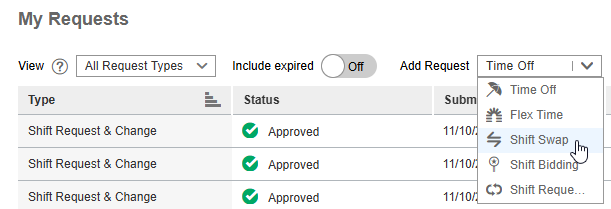
From the Add Request drop-down list, select Shift Swap.
-
From To swap my, select one of the following:
-
Shift: You want to swap a shift with another employee.
-
Non-work time: You want to swap non-work time with another employee.
-
-
From either the Shift or Non-work time drop-down lists, select one of the following:
-
One-way: You take a shift or non-work day from another employee without the other employee taking a shift or non-work day from you.
-
Two-way: You take a shift or non-work day from another employee and the other employee takes a shift or non-work day from you.
-
-
Depending on your selections, complete the remaining fields.
-
To submit your shift swap request, select Add.
References